Household
Inviting & managing members
A household lets several people plan dinners on one shared board. The creator is the Owner; from there you add people by email, give each one a role, and watch your seats fill up. Sharing a board is a Family feature — Free and Solo are single-seat, so inviting anyone means upgrading to Family first.
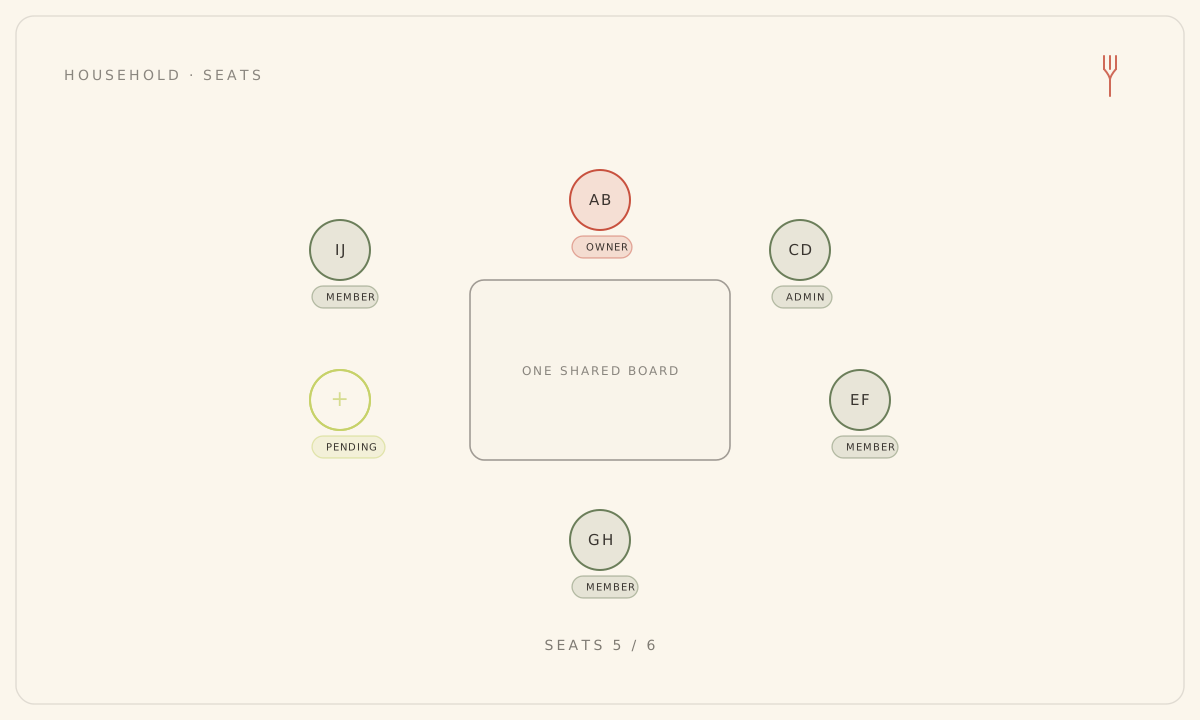
Seats and the Family plan
Family holds up to six seats around one board. Your seat count is everyone already in the household plus any pending invitations, so an invite you haven't sent yet still reserves a spot — you can't over-invite past six. On Free or Solo the invite form is replaced with a Family plan required notice and an Upgrade to Family option, because both are single-seat.
Invite someone
- Go to Settings > Household on the web, or the Household tab on the phone.
- Under Invitations, enter the person's email.
- Choose a role — Member or Admin.
- Send the invite. They get an email titled "Join <household> on Forkboard" with an accept link.
- The pending invite appears in your list with its expiry date; cancel it anytime before it's accepted.
Only Owners and Admins can invite. Invitations expire after seven days. The invite form offers Member or Admin only — the Child role is set later, by editing an existing member.
Accepting an invite
The invited person opens the email and clicks Accept here, which opens the invitation page on the web. They sign in if needed, review who invited them and the role they're getting, then accept. They land on the shared board with the household's shared preferences. If the household has filled its last seat by the time they accept, acceptance is blocked with a seat-limit message — a backstop on top of the invite-time cap.
Roles, and what they can do
- Owner — the household creator. Full authority and billing. The Owner can't be removed, demoted, or transferred.
- Admin — the same admin powers in the UI: rename, invite, and manage members.
- Member — a standard planner.
- Child — can rate meals but can't touch billing.
Managing members
Role changes, removing a member, and leaving a household all happen on the web, in Settings > Household. Use the role dropdown to move someone between Admin, Member, and Child, or Remove to take away their access — both ask you to confirm. To step away yourself, use Leave on your own row.
On the phone, the Household screen shows members, roles, and your seat count, and can send or cancel invites — but role editing, removal, and leaving are web-only.
Still stuck? Email hello@forkboard.app.