Account & billing
Managing your subscription
Once you're on a paid plan, changing it is straightforward — but where you do it depends on where you bought it. A plan started on the web is managed on the web; one bought in the app is managed through the store that sold it — Apple on iPhone, Google Play on Android. Forkboard always shows you exactly what a change costs, or refunds, before you confirm.
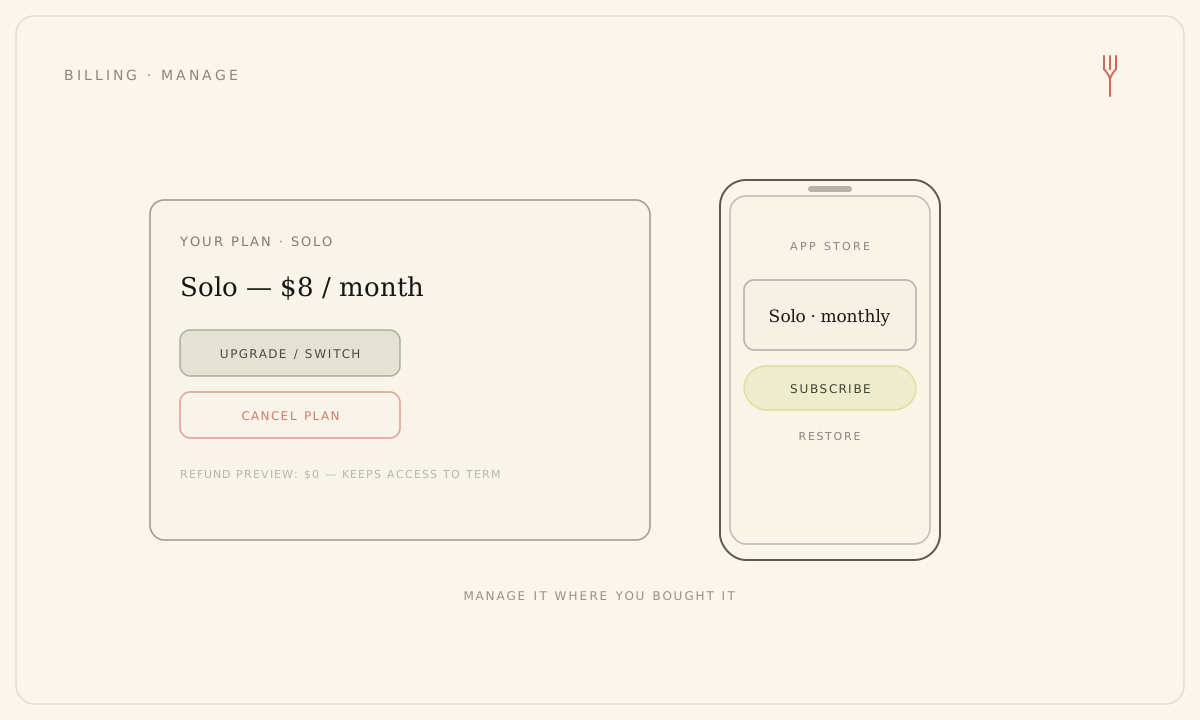
On the web (Stripe)
Open Settings, then Billing. From there an owner or admin can upgrade, switch, manage payment details, or cancel. Plain members and child accounts can't change billing.
- To upgrade or switch, choose Monthly or Annual, then click Upgrade — or Switch, if you're already on a paid tier.
- With no live subscription yet, you go to Stripe Checkout, which collects a billing address and accepts promo codes. On success you return to Billing with a confirmation, and the tier updates within moments.
- If you already have a live subscription, switching tier or interval happens in place — no second checkout. The prorated difference settles immediately: an upgrade invoices the difference, a downgrade banks a credit. The switch also clears any cancel you'd scheduled.
- To manage your card or view invoices, click Manage subscription to open the Stripe Customer Portal.
- To cancel, click Cancel plan. A dialog first fetches and shows your exact refund — or that there isn't one — before you confirm.
Cancelling through Forkboard's own flow is what issues any policy refund — the Stripe Portal on its own can't. A refund ends access immediately and returns you to Free; a no-refund monthly cancel keeps access until the term ends.
In the app (Apple or Google Play)
In the phone apps, Solo and Family are sold only through the store's own in-app purchase — Apple on iPhone, Google Play on Android — at store prices. Open the Billing tab to subscribe or restore.
- Choose Monthly or Annual, then tap Subscribe on the Solo or Family card and complete the purchase in the store's sheet — it bills through your Apple ID on iPhone, or your Google Play account on Android.
- Your plan updates once the store confirms it server-side, so the screen refreshes itself a moment after you buy, rather than reading the device receipt.
- Tap Restore purchases if you reinstalled or switched devices, to re-grant a purchase tied to your store account.
- To cancel, go to the store that billed you: on iPhone, iOS Settings, then your Apple ID, then Subscriptions; on Android, the Play Store, then your avatar, then Payments & subscriptions. Store-billed plans are cancelled there, not inside Forkboard.
If your plan is billed on the web, the app's Billing screen shows a plain note to manage it at forkboard.app — it isn't a tappable link, since neither App Store nor Google Play rules allow one. Manage that plan on the web instead.
Refunds and the trial
- Within 14 days of your first charge: a full refund, your plan cancels immediately, and you return to Free.
- After 14 days on a monthly plan: no refund — the plan rides to the end of the paid term, then cancels, and you keep access until then.
- After 14 days on an annual plan: a pro-rated refund for the unused remainder of the year, your plan cancels immediately, and you return to Free.
- Refunds go to your original payment method and take five to ten days to appear.
During the card-free trial there's nothing to cancel — there's no subscription yet, and the screen says so. Deleting your account also cancels your plan and issues the same policy refund.
Still stuck? Email hello@forkboard.app.