Getting started
Signing in to Forkboard
Forkboard has no passwords. You sign in with a one-time link sent to your email, or by continuing with Google or Apple — and if it's your first time, the account is created on the spot. There's no separate sign-up step to find.
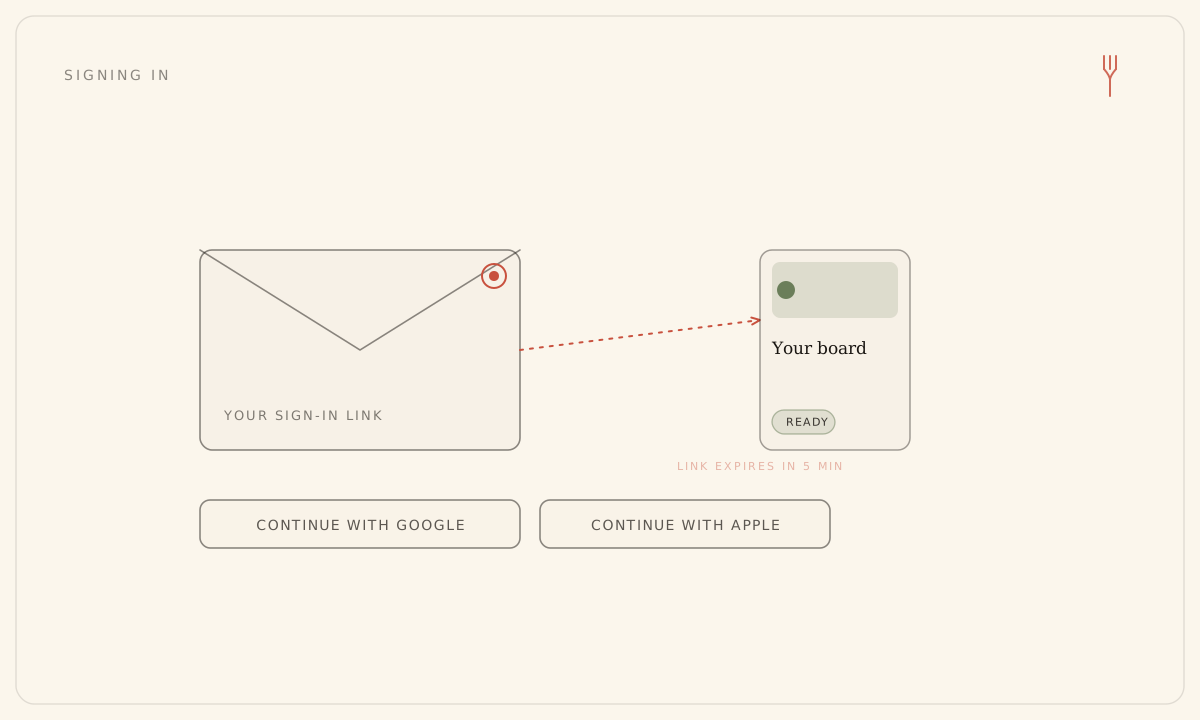
Sign in with a magic link
- Open the sign-in screen — /sign-in on the web, or the Sign In screen the first time you open the app.
- Type your email. On the web, complete the verification check if one appears before the link is sent.
- Submit it. You'll see a 'Check your inbox' confirmation.
- Open the email titled 'Sign in to Forkboard' and click 'Sign in'.
- On the web you land straight in the app; on the phone, the link opens the app and finishes signing you in. If you're new, your account is created right then.
The link is good for five minutes and works once. On the phone, open it on the same device that asked for it — it opens the app directly rather than a browser.
Continue with Google or Apple
On the sign-in screen, choose 'Continue with Google' or 'Continue with Apple' and complete the provider's prompt. You're in — and a new account is created automatically if you didn't already have one. The Apple button shows on iPhone; the Google button shows where Google sign-in is set up.
One email, one account
The same verified email is the same account, however you arrive at it — magic link, Google, or Apple all resolve to one Forkboard account, so you won't end up with duplicates. The one exception is Apple's Hide My Email: it hands back a private relay address that doesn't match your real one, so signing in that way creates a separate account.
Still stuck? Email hello@forkboard.app.